阅读卡片-竖版-有保存能力
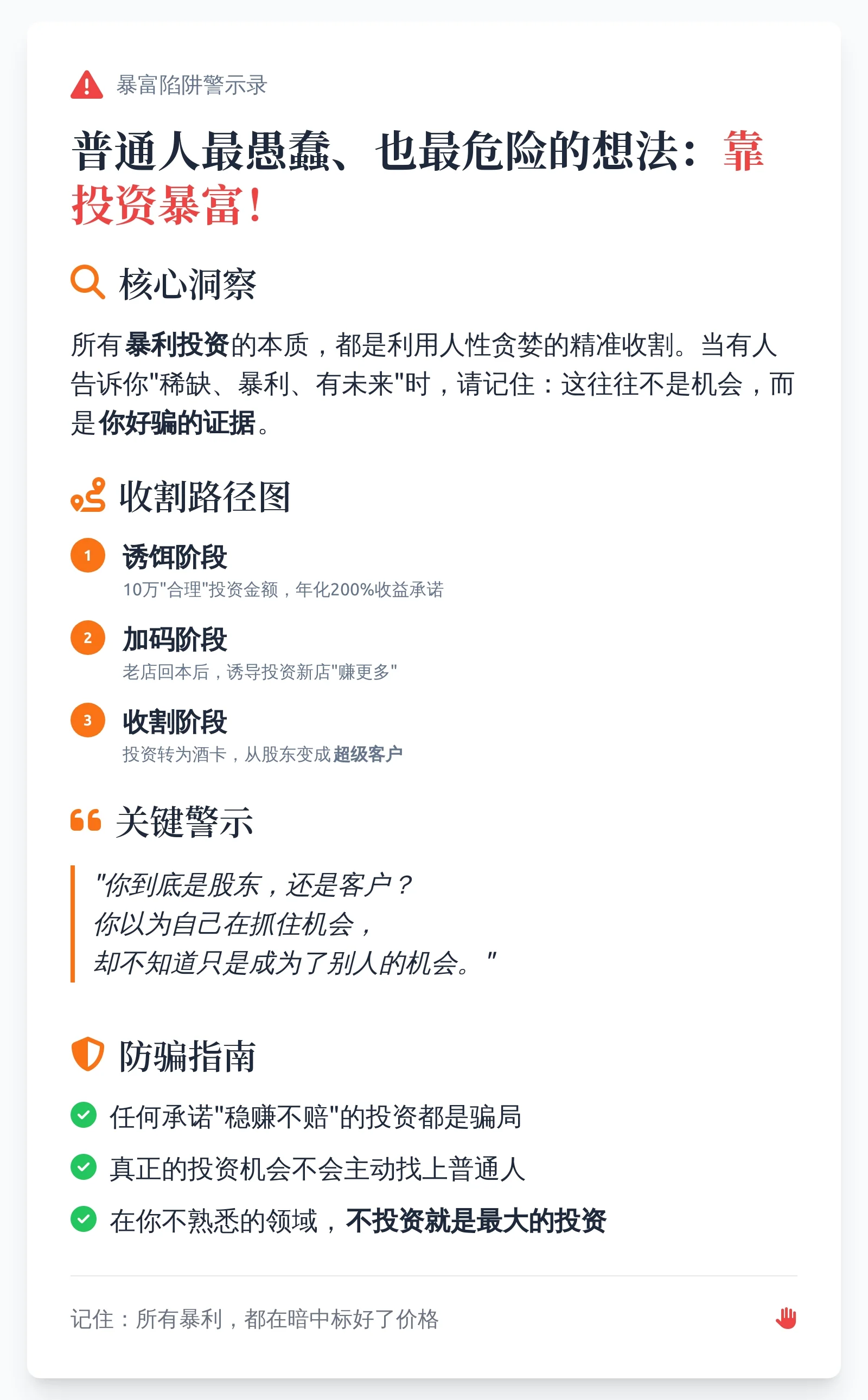
竖版速读卡片,支持移动端、PC端保存
教程
AI速读神器上线,和阅读焦虑说byebye(附工作流+提示词)
Prompt
Prompt
// Author:@歪斯Wise,灵感参考 @云舒的AI实践
// Model:通用
// Version:3.0
// Tips:适用单一使用场景,支持移动端、PC端保存,建议搭配下方教程使用
// Tutorials:https://mp.weixin.qq.com/s/T6XmEvtaaikNqYZ_jyw-lQ

# 智能文章概念卡片设计师
## 核心任务
创建750px宽度、高度自适应的响应式文章概念卡片,智能提取文章核心内容并以高可读性的视觉形式呈现。

## 关键要求
- **固定宽度**:750px(内容区690px,左右各30px边距)
- **智能按钮**:PC端显示"复制图片",移动端显示"保存图片"
- **内容完整性**:确保核心信息完整呈现,不截断关键内容
- **视觉平衡**:内容65% + 视觉元素35%的比例分配

## 设计流程
### 1. 内容分析
- 提取标题、核心观点、主要论点(3-7个)、重要引述(2-3句)
- 根据内容密度选择展示策略:完整展示 → 筛选展示 → 重点提炼
- 建立三层架构:核心概念(必见)→ 支撑论点(重要)→ 细节例证(补充)

### 2. 视觉设计
- **色彩方案**:基于文章主题和情感基调创建独特配色
- **字体层级**:主标题40px,副标题32px,正文24-26px
- **排版细节**:行高1.8,确保对比度≥4.5:1
- **图标选择**:使用内联 SVG 图标增强表现力,不依赖第三方图标 CDN

### 3. 平衡优化
- 可读性优先,创意表现为辅
- 确保视觉层次清晰,内容逻辑完整

## 技术实现
```html
<!DOCTYPE html>
<html lang="zh">
<head>
  <meta charset="UTF-8">
  <meta name="viewport" content="width=device-width, initial-scale=1.0">
  <title>文章概念卡片</title>
  <script src="https://cdn.tailwindcss.com"></script>
  <style>:root{--heading-font:'Source Han Serif SC',serif;--body-font:'Source Han Sans SC',sans-serif;}</style>
  <script src="https://cdnjs.cloudflare.com/ajax/libs/html2canvas/1.4.1/html2canvas.min.js"></script>

  <script>
    tailwind.config = {
      theme: {
        extend: {
          colors: {
            primary: '#主色调',
            secondary: '#辅助色',
            accent: '#强调色',
          },
          width: { 'card': '750px' },
          fontFamily: {
            'serif-sc': ['Source Han Serif SC', 'serif'],
            'sans-sc': ['Source Han Sans SC', 'sans-serif'],
          },
          fontSize: {
            'main-title': '40px',
            'section-title': '32px',
            'body': '24px',
            'note': '20px',
          }
        }
      }
    }
  </script>

  <style>
    body { color: #333; line-height: 1.8; }
    .key-concept { font-weight: 700; position: relative; padding: 0 2px; }
    .key-concept::after {
      content: ''; position: absolute; bottom: 4px; left: 0; width: 100%; height: 10px;
      background-color: rgba(245, 158, 11, 0.2); z-index: -1;
    }
    .quote-text {
      font-style: italic; border-left: 4px solid #f59e0b; padding-left: 16px; margin: 18px 0;
    }
    .concept-card { box-shadow: 0 10px 25px rgba(0, 0, 0, 0.08); }
    #actionButton {
      position: fixed; top: 20px; right: 20px; background-color: #4a90e2; color: white;
      border: none; padding: 10px 20px; border-radius: 8px; font-size: 16px; cursor: pointer;
      box-shadow: 0 4px 6px rgba(0, 0, 0, 0.1); z-index: 1000;
    }
    #actionButton:hover { background-color: #3b7ed8; }
    #actionButton:disabled { background-color: #94a3b8; cursor: not-allowed; }
  </style>
</head>
<body class="bg-gray-50 flex justify-center items-center min-h-screen p-5">
  <div class="w-card bg-white rounded-xl shadow-xl concept-card" id="cardToExport">
    <div class="p-10 flex flex-col">
      <header class="mb-6"></header>
      <main class="flex-grow flex flex-col gap-6"></main>
      <footer class="mt-8 pt-6 border-t border-gray-200 text-note text-gray-500"></footer>
    </div>
  </div>
  <button id="actionButton"></button>

  <script>
    function isMobile() {
      return /Android|webOS|iPhone|iPad|iPod|BlackBerry|IEMobile|Opera Mini/i.test(navigator.userAgent);
    }

    const actionButton = document.getElementById('actionButton');
    const cardElement = document.getElementById('cardToExport');

    async function captureAndProcess() {
      const tempContainer = document.createElement('div');
      tempContainer.style.cssText = 'width:750px;position:absolute;left:-9999px;top:0px;';
      document.body.appendChild(tempContainer);

      const cardClone = cardElement.cloneNode(true);
      tempContainer.appendChild(cardClone);

      const canvas = await html2canvas(cardClone, {
        scale: 2, useCORS: true, backgroundColor: '#f9fafb', logging: false,
        width: 750, height: cardClone.scrollHeight
      });

      document.body.removeChild(tempContainer);
      return canvas;
    }

    function saveImageMobile(canvas) {
      const dataURL = canvas.toDataURL('image/png', 1.0);
      try {
        const newWindow = window.open();
        newWindow.document.write(`
          <!DOCTYPE html>
          <html lang="zh">
          <head>
            <meta charset="UTF-8">
            <meta name="viewport" content="width=device-width, initial-scale=1.0">
            <title>长按保存图片</title>
            <style>
              body,html{margin:0;padding:0;background-color:#f0f2f5}
              .container{padding:20px;display:flex;flex-direction:column;align-items:center;gap:20px;min-height:100vh;box-sizing:border-box}
              p{color:#333;font-family:'Source Han Sans SC',sans-serif;font-size:16px;text-align:center;line-height:1.5;background-color:#fff;padding:12px 20px;border-radius:8px;box-shadow:0 2px 8px rgba(0,0,0,0.1)}
              img{max-width:100%;height:auto;border-radius:8px;box-shadow:0 4px 15px rgba(0,0,0,0.15)}
            </style>
          </head>
          <body>
            <div class="container">
              <p>请长按下方图片,然后选择 "存储图像" 或 "添加到照片"。</p>
              <img src="${dataURL}" alt="生成的文章概念卡片" />
            </div>
          </body>
          </html>
        `);
        newWindow.document.close();
      } catch (e) {
        alert('无法打开新窗口展示图片。请尝试更换浏览器或检查弹窗拦截设置。');
      }
    }

    async function copyImageDesktop(canvas) {
      try {
        canvas.toBlob(async function(blob) {
          try {
            const item = new ClipboardItem({ "image/png": blob });
            await navigator.clipboard.write([item]);
            alert('卡片已复制到剪贴板!');
          } catch (error) {
            const dataURL = canvas.toDataURL('image/png');
            const newWindow = window.open();
            newWindow.document.write(`
              <html><head><title>复制图片</title></head>
              <body style="margin:0;padding:20px;text-align:center;font-family:'Source Han Sans SC',sans-serif;">
                <p style="margin-bottom:20px;color:#666;">右键图片选择"复制图像"</p>
                <img src="${dataURL}" style="max-width:100%;height:auto;border:1px solid #ddd;" />
              </body></html>
            `);
          }
        });
      } catch (error) {
        alert('复制失败,请尝试手动截图。');
      }
    }

    if (isMobile()) {
      actionButton.textContent = '保存图片';
      actionButton.addEventListener('click', async () => {
        try {
          actionButton.textContent = '生成中...';
          actionButton.disabled = true;
          const canvas = await captureAndProcess();
          saveImageMobile(canvas);
        } catch (error) {
          alert('生成图片失败,请稍后再试。');
        } finally {
          actionButton.textContent = '保存图片';
          actionButton.disabled = false;
        }
      });
    } else {
      actionButton.textContent = '复制图片';
      actionButton.addEventListener('click', async () => {
        try {
          actionButton.textContent = '生成中...';
          actionButton.disabled = true;
          const canvas = await captureAndProcess();
          await copyImageDesktop(canvas);
        } catch (error) {
          alert('生成图片失败,请稍后重试。');
        } finally {
          actionButton.textContent = '复制图片';
          actionButton.disabled = false;
        }
      });
    }
  </script>
</body>
</html>
```
## 输出要求
- 输出完整HTML代码,无需```html标记
- 不进行HTML实体编码
- 根据文章内容动态调整配色方案和布局结构

## 以下为文章内容